How to Choose a Gaming Mouse: DPI, Sensors & Grip Styles Explained
My first gaming mouse cost less than a pizza, and it nearly ruined my aim. The cursor would randomly skip pixels during flick shots, and after a week of blaming myself for missing shots in Counter-Strike, I borrowed a friend's proper gaming mouse for one evening. Suddenly my crosshair went where my hand went. Same game, same settings, same player — different sensor. I have never used a generic mouse since.
But buying a gaming mouse in 2026 is genuinely confusing. Boxes scream about 26,000 DPI, 8,000Hz polling, optical switches, and esports-grade everything. Most of those numbers are marketing theater. This guide separates what actually affects your aim from what only affects the price tag: how sensors really work, why DPI is the most misunderstood specification in gaming, what polling rate and weight do for you, how to match a mouse to your hand size and grip style, and honest budget tiers so you spend exactly as much as makes sense — nothing more.
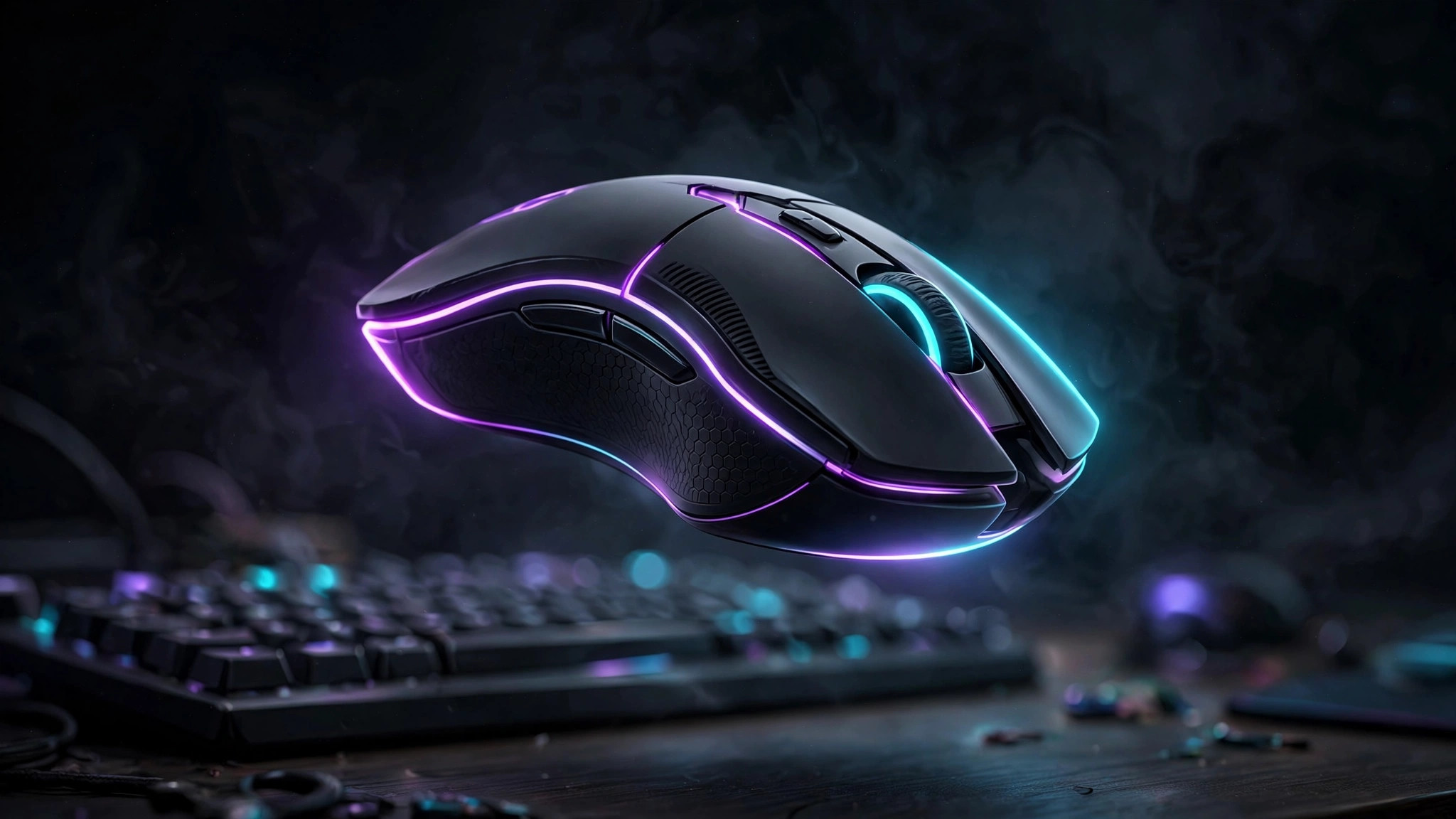
Sensors: The Engine Under the Mouse
Every modern gaming mouse uses an optical sensor — a tiny camera underneath that photographs your mousepad thousands of times per second and compares the images to calculate movement. This is the single component that determines whether your cursor faithfully follows your hand or occasionally lies to you.
Optical vs Laser: The Old Debate Is Over
Laser mice were once marketed as premium because they tracked on more surfaces. In practice, laser sensors are more prone to acceleration quirks — the cursor traveling slightly different distances depending on how fast you move — which is poison for muscle memory. Modern optical sensors are more accurate, more consistent, and cheaper to make. Every reputable gaming mouse today uses an optical sensor, and you should not consider anything else.
What Separates a Good Sensor From a Bad One
Three things matter: perfect tracking (no acceleration, no prediction, no angle snapping — the cursor moves exactly as your hand moves), a high maximum speed (measured in IPS, inches per second — anything above 300 IPS will never be outpaced by a human wrist), and reliable lift-off distance (how high you can lift the mouse before it stops tracking — lower is better, since it prevents accidental cursor drift when you reposition). Here is the good news: even budget gaming mice from reputable brands now ship with sensors that check all three boxes. The sensor gap between a $30 gaming mouse and a $150 one is far smaller than marketing suggests. What your money buys above the mid-range is mostly shape, weight, build quality and wireless tech — not dramatically better tracking.
DPI: The Most Misunderstood Spec in Gaming
DPI (dots per inch) measures how many on-screen counts the sensor reports per inch of physical movement. Higher DPI means the cursor moves farther per inch — it is a sensitivity multiplier, not a quality metric. And yet entire product pages are built around who can print the biggest DPI number. Let us fix that misunderstanding permanently.
High DPI Does Not Mean High Precision
A mouse advertising 26,000 DPI is not more accurate than one advertising 12,000 DPI. Once a sensor tracks flawlessly, higher maximum DPI adds nothing — no human uses 26,000 DPI, because the cursor would fly across a 4K monitor from a breath. What matters is that the sensor is accurate at the DPI you actually use, which for the vast majority of gamers sits between 400 and 1600.
What Actually Matters: eDPI
Your real sensitivity is your DPI multiplied by your in-game sensitivity — this product is called eDPI, and it is the only sensitivity number worth comparing. Competitive FPS players typically play at an eDPI that takes 20 to 40 centimeters of mouse movement to complete a full 360-degree turn. The common recipe is 400 or 800 DPI with a low in-game sensitivity. Use whatever DPI is comfortable, keep your in-game sensitivity modest, and remember: one low eDPI setting used consistently builds muscle memory; constantly switching DPI between games destroys it.
Don't Chase the DPI Arms Race
If two mice differ only in that one advertises 12,000 DPI and the other 26,000 DPI, that difference is worth exactly zero in real play. Ignore it entirely. A much better use of your attention is the next section — because polling rate and latency differences, while also over-marketed, are at least real.
Polling Rate and Latency: How Fast Your Mouse Talks to Your PC
Polling rate is how many times per second your mouse reports its position to your computer: 1000Hz means a report every millisecond. Higher polling reduces the delay between your hand moving and the game seeing it — but the gains shrink fast, and the costs (CPU usage, battery drain on wireless models) are real.
The 1000Hz Sweet Spot
For the overwhelming majority of players, 1000Hz is plenty. Moving from 125Hz (typical of cheap office mice) to 1000Hz produces a genuinely noticeable improvement in cursor smoothness and responsiveness. Going beyond 1000Hz — 2000, 4000, 8000Hz — produces differences measured in fractions of a millisecond that are essentially imperceptible, even to professionals. If a mouse costs significantly more solely because of an 8000Hz mode, that money is better spent elsewhere.
Wired vs Wireless: The Gap Is Closed
The old rule — serious players must use wired — is dead. Modern 2.4GHz wireless gaming mice (using the included USB dongle, not Bluetooth) report latency within a couple of milliseconds of wired models. That difference is below what any human can detect. What wireless adds is real convenience: no cable drag, no mouse bungee needed, freedom to reposition. The trade-offs are battery management (most last days to weeks per charge — check the rating), slightly higher price, and a small amount of extra weight from the battery. Bluetooth-only operation is a different story: Bluetooth latency is too high for competitive gaming, so treat Bluetooth as a handy extra for travel and laptops, never as your gaming connection.
Shape and Grip Style: The Spec Nobody Puts on the Box
Here is the uncomfortable truth the marketing never tells you: the shape of the mouse matters more for your performance than every specification above combined. A perfect sensor in the wrong shape will still wreck your aim, because your hand cannot control what it cannot comfortably hold. This is the section to read twice.
The Three Grip Styles
Palm grip: your entire hand rests on the mouse, fingers flat. It is the most relaxed grip and the most common. Palm grippers typically want a longer, taller mouse that fills the hand — too small a mouse forces a cramped claw.
Claw grip: palm rests at the back while fingers arch down onto the buttons, like a claw. It balances comfort with the quick micro-adjustments competitive players love. Claw grippers usually prefer medium mice with a pronounced hump toward the middle or back.
Fingertip grip: only the fingertips touch the mouse; the palm floats. It offers the finest control and the fastest flicks, at the cost of fatigue in long sessions. Fingertip grippers almost always prefer smaller, lighter, flatter mice.
Match the Mouse to Your Hand Size
Measure from the base of your palm to the tip of your middle finger: under 17cm is a small hand, 17-19cm medium, over 19cm large. As a starting point, small hands suit compact mice, medium hands the standard mid-size models, and large hands the bigger ergonomic shapes. Grip style shifts this: a large-handed fingertip gripper may still love a small mouse. Use hand size as a starting point, not a rule — and seriously consider retailers with easy returns, because the only true test is holding it.
Ergonomic vs Ambidextrous Shapes
Ergonomic (right-handed) mice sculpt to your hand's contours and feel wonderful for palm and relaxed claw grips — but they only come in right-handed versions. Ambidextrous (symmetrical) mice work for both hands and are the traditional choice for claw and fingertip players, who value the narrower waist and lower profile. Neither is objectively better; it depends on your grip. One warning: avoid cheap "ergonomic" knockoffs that copy the look without the engineering — a badly sculpted mouse is worse than a plain symmetrical one.
Weight: The Great Lightweight Revolution
A decade ago, gaming mice weighed 120 grams or more, and some even shipped with removable weights to get heavier. The industry has completely reversed: the trend is ultralight mice in the 50-70 gram range, and for good reason. A lighter mouse requires less force to start, stop and change direction, which translates directly into faster flicks and less fatigue across long sessions.
How Light Is Light Enough?
Under 70 grams is genuinely light; 70-90 grams is a comfortable middle ground most players love; above 100 grams feels heavy by modern standards and only suits players who deliberately like the planted, steady feel. You do not need the absolute lightest mouse on the market — the difference between 55 and 65 grams is negligible. But moving from a 120-gram brick to an 80-gram mouse is one of the most immediately noticeable upgrades in gaming hardware.
The Trade-offs of Ultralight
Cutting weight usually means honeycomb shells (holes in the body) or thinner plastics. Holes collect dust and sweat and can bother some users' skin; thinner shells can flex slightly. Solid-shell lightweight mice exist but cost more. Also note: ultralight matters most for low-sensitivity players who make big arm movements. If you play at high sensitivity with tiny wrist movements, weight matters less — shape matters more.
Switches: What Your Clicks Are Made Of
The buttons on a gaming mouse contain switches — small mechanical or optical components that register each click. They determine how clicks feel and, more importantly, how long they last before failing.
Mechanical vs Optical Switches
Traditional mechanical switches use metal contacts that physically touch. They feel crisp and familiar, but the contacts can develop the infamous double-click problem — one press registering as two — as they wear. Optical switches use a light beam interrupted by the click, so there is no contact to wear out in that spot, and they actuate slightly faster. Optical switches are generally the better technology, but a good mechanical switch from a reputable maker lasts tens of millions of clicks. Either is fine; what you want to avoid is the no-name switch in a suspiciously cheap mouse — that is where double-click failures live.
Click Feel Is Personal
Some players love a light, hair-trigger click; others want a firm, deliberate press. Reviews usually describe click feel, but there is no substitute for trying. If possible, test display units in a store — click feel is one of the few things you can actually judge in thirty seconds.
Buttons, Software and the Extras
Most gaming mice carry two side buttons (forward/back); MMO and MOBA players may want a dozen. More buttons add versatility and weight, so match the button count to your games. As for software: every brand ships a configuration app for DPI steps, polling rate, macros and RGB. It is worth checking reviews for whether the software is lightweight or a bloated always-running background service — some are notorious resource hogs. RGB lighting is purely cosmetic; it adds nothing to performance, so never pay a premium for prettier lights.
Budget Tiers: What Your Money Buys
Prices shift with sales and region, so think in tiers rather than exact figures. In Pakistan, the entry and mid tiers are widely available through online marketplaces and local gaming shops — just buy from sellers with strong ratings, since counterfeit gaming peripherals are a real problem in the grey market.
| Tier | What you get |
|---|---|
| Entry | A real gaming sensor with flawless tracking, basic shape options, mechanical switches. The massive leap from an office mouse happens here — aim becomes consistent overnight. |
| Mid-range | The sweet spot: lighter weight, better switches, more shape choices, often solid 2.4GHz wireless. This is where most players should buy — genuinely excellent mice live here. |
| Premium | Top-tier wireless, ultralight builds, refined shapes, optical switches. Real improvements over mid-range, but incremental — the performance-per-dollar curve flattens hard. |
| Flagship / Esports | The lightest bodies, highest polling rates, pro-player signature shapes. Buy this only if you know exactly which shape you want and why — for everyone else it is prestige pricing. |
The honest summary: an entry-tier gaming mouse from a reputable brand beats a flagship mouse in the wrong shape, every single time. Fit first, specs second, brand last.
How to Test a Mouse Before Committing
Buy from a retailer with a sane return policy and run this gauntlet in your first week. Shape test: play your main game for a full two-hour session — hotspots and cramping show up over time, never in the first five minutes. Tracking test: draw slow circles and fast flicks in a paint program — the cursor should follow silkily with no skipping or jitter. Lift-off test: lift and reposition the mouse mid-flick repeatedly; the cursor should freeze cleanly, not drift. Switch test: spam-click in a click-tester for a few minutes and watch for double registrations. Cable or wireless test: check for drag, snagging or connection drops during real play. If anything fails, return it — a mouse is a daily-use tool for years, and settling is the most expensive mistake of all.
Frequently Asked Questions
What DPI should I use for FPS games?
Most competitive FPS players use 400 or 800 DPI combined with a low in-game sensitivity, giving an effective sensitivity around 20-40cm of mouse movement for a 360-degree turn. The DPI number alone means little — what matters is your total sensitivity (DPI × in-game sensitivity). Avoid extremely high DPI settings like 6400+: they add no precision and often make aim jittery.
Are expensive gaming mice worth it?
Up to the mid-range, yes — you get a genuinely better sensor, lighter weight, and more reliable switches. Beyond that, returns diminish quickly: a top-tier mouse will not make you aim better than a solid mid-range one. The biggest jump in performance comes from upgrading a basic office mouse to any decent gaming mouse, and the second biggest comes from choosing a shape that fits your hand.
Is wireless good enough for competitive gaming?
Yes — modern 2.4GHz wireless gaming mice have latency within a couple of milliseconds of wired mice, a difference no human can perceive. The caveat is Bluetooth: Bluetooth latency and polling limitations make it unsuitable for competitive play. If you buy wireless, use the included 2.4GHz dongle for gaming, not Bluetooth.
How do I find the right mouse size for my hand?
Measure your hand from the base of your palm to the tip of your middle finger. Hands under 17cm generally suit small mice, 17-19cm medium mice, and above 19cm large mice. Grip style matters too: palm grippers usually want a longer, taller mouse; fingertip grippers often prefer smaller, flatter shapes. These are starting points — comfort is personal, so buy from a retailer with a good return policy.